|
Key features.
|
·
|
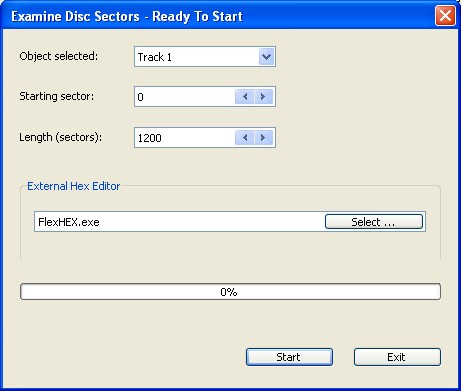
Intensive disc scan for
particular data. For example, it searches for an email
address on a disc regardless of what file the mail may be in. Can
be used to examine the data on optical discs (CD, DVD, Blu-ray) and
also on hard disks, flash drives and other types of Windows
disks/drives. To activate the search window, just click the
Examine Sectors button in
Other Tools section of Side Bar, or select the same command in the
Tools menu. |

You can stop a search in any time, view intermediate results and
continue the process where you left it before.
|
·
|
Sector View allows you
to display the disc sectors in the Text, Binary, Hexadecimal/Text
or Unicode mode. There is no requirement that the sectors belong to
a file - any sector on the disc can be displayed. Just click
View sector button in the
Examine Disc Sectors dialog shown above. There is no limitation to
view the sector data only in a single window - multiple
Sector View dialogs can be
open at the same time. |
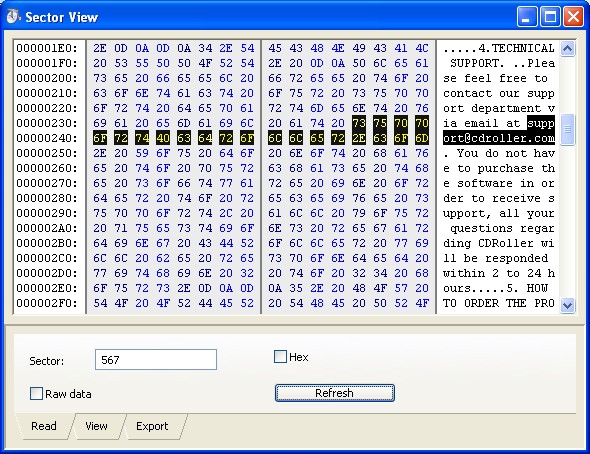
To move between sectors you can either use the arrows to the
right of the sector number, or you can enter a sector number and
press the Enter key, or just paste a new sector number from the
clipboard. You can simply adjust the font size under the View tab
in order to get more comfortable view. Copy and Save To File options are also available
under the Export tab.
|
·
|
The Copy sectors tab
allows the direct copying of selected sectors to a disk file.
Unchecking Replace bad sectors
with zeros: is useful for certain types of discs, such as
DVD camcorder mini discs. CDRoller will normally replace unreadable
sectors with binary zeros to maintain the relative positions of
data. This can cause problems for video players so when copying
movie data this option should be unchecked. |

|
·
|
Direct examination of the
content of selected file from the main window. To view file
content, just select a file in the main window and click the
Examine Sectors button in
Other Tools section of Side Bar. Or, right click the file name and
select Examine Sectors from the pop-up menu. |

You can find a particular data (text), using a set of options
under the Search tab. The
information can be also displayed in the Text, Binary,
Hexadecimal/Text or Unicode mode with font size adjustment. The
data pane can be also resized and scrolled.
|
·
|
Support of External Hex
Editor. Instead of built-in Sector Viewer, you can simply
connect a professional hex editor (WinHex, FlexHex, Hex
Workshop, HxD, etc.) and use it for detailed analysis of
selected sectors or file data. |
To activate this option, just check the Use external hex editor... under
CD/DVD Library tab in the
Preferences dialog:

The next time, when you apply Examine Sectors to the selected disc or
file in the program window, you're asked to assign External Hex Editor, software installed
in your system.
Note. If you
manage the inserted disc with CDRoller Image, all changes in
the sectors data saved by external editor will modify the image
file. Further, you can recover
files/folders, or extract a whole track(s), or create ISO Image File, and then
burn a new disc with modified data without leaving CDRoller.
|


